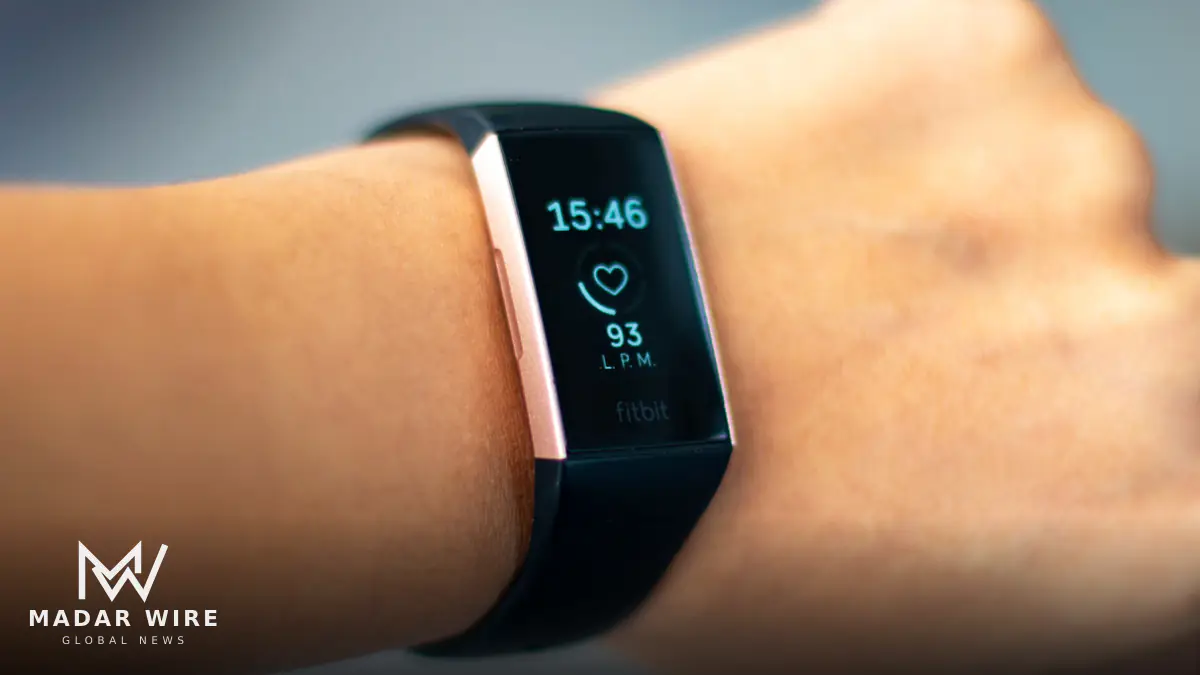
If your Fitbit tracker is acting sluggish, failing to sync, or exhibiting persistent screen glitches, you may be tempted to wipe the device entirely. However, as noted in recent reporting by Engadget, users often confuse a basic restart with a full factory reset. Understanding the difference is critical to resolving technical issues without unnecessarily losing your health data.
The Difference Between Restarting and Resetting
A restart is the digital equivalent of power-cycling your computer. It clears the temporary cache and reloads the operating system, which is usually sufficient to fix minor connectivity bugs or unresponsive touchscreens. Because a restart does not touch your stored activity logs or personal settings, it should always be your first line of defense when a device begins to underperform.
Conversely, a factory reset is a more aggressive measure. This process deletes all user-specific data, including unsynced health metrics, custom watch faces, and paired Bluetooth connections. Engadget emphasizes that this should be reserved for situations where you are preparing to sell the device, give it to a new owner, or if you have exhausted all other troubleshooting steps provided by Google’s support documentation.
How to Safely Manage Your Device
Before you commit to a factory reset, ensure your device is fully synced with the Fitbit mobile app. Since a reset returns the tracker to its original factory settings, any data that has not been uploaded to the cloud will be permanently erased. Once the process is initiated, the device will effectively act as a brand-new unit, requiring you to go through the entire setup and pairing process again.
To perform a restart, most modern Fitbit models allow you to navigate to the 'Settings' menu and select 'Shutdown' or 'Restart.' If the device is completely frozen, many models support a physical button combination—typically holding the side button for 10 to 15 seconds—to force a reboot. If you must proceed with a factory reset, look for the 'Clear User Data' or 'Factory Reset' option within the device settings menu. Always verify your specific model’s manual, as the button sequences vary significantly between the Charge, Versa, and Sense product lines.